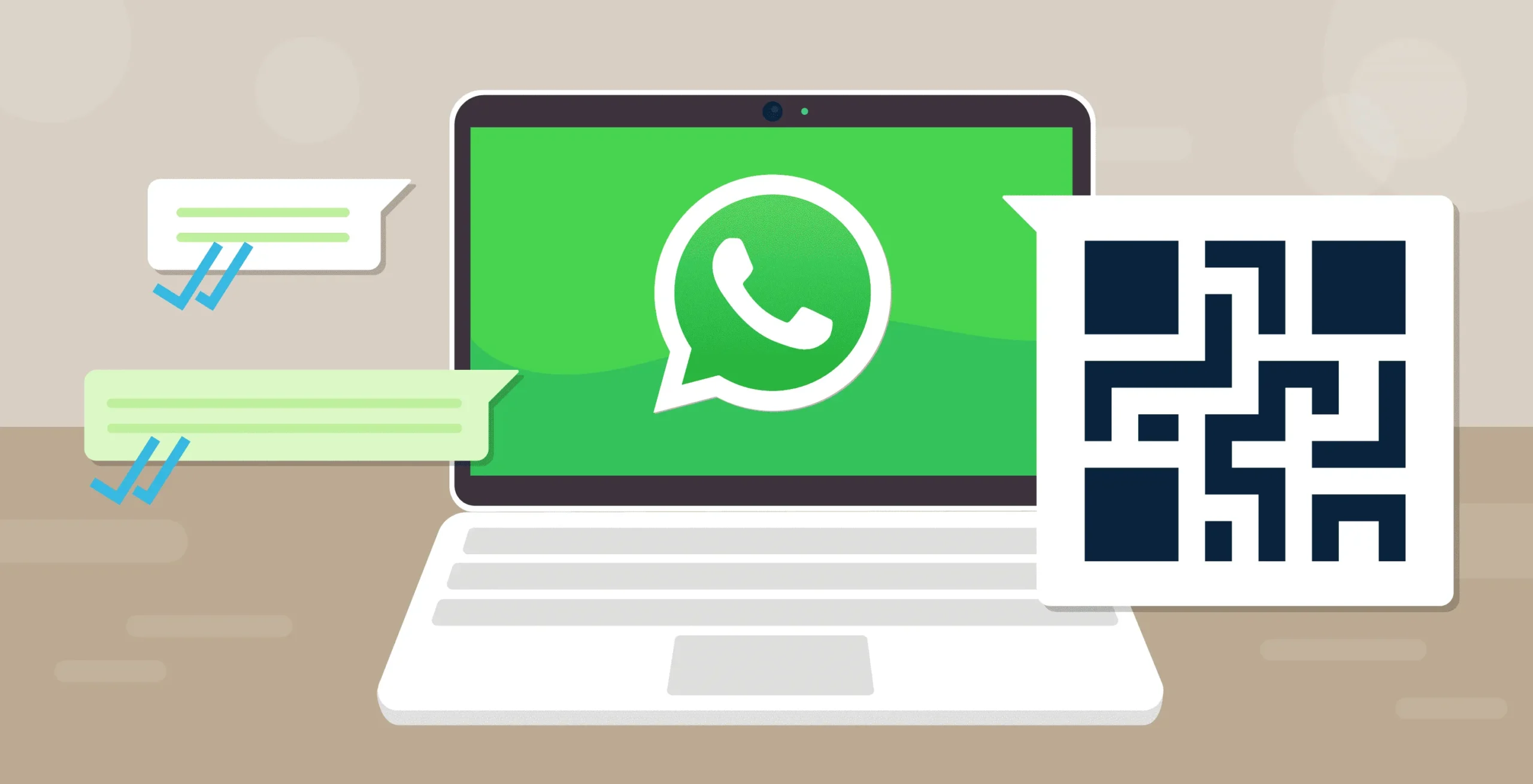
Whatsapp web has become one of the most useful tools for people who spend a lot of time working on computers. It allows users to access their Whatsapp chats directly from a web browser without constantly checking their phones. Whether you are a student, business owner, remote worker, or casual user, Whatsapp web makes communication easier and faster.
Using Whatsapp web gives you the convenience of typing on a full keyboard, sharing files from your computer instantly, and managing conversations while multitasking. Many new users find the setup process simple, but understanding all the steps can help avoid confusion and improve the experience from the beginning.
This guide explains everything new users need to know about setting up Whatsapp web, including requirements, setup instructions, features, troubleshooting tips, and security advice.
What Is Whatsapp Web
Whatsapp web is the browser-based version of Whatsapp that mirrors conversations and messages from your mobile device. Instead of downloading a separate application, users can open Whatsapp web in a browser and connect their phones through a QR code.
The platform works on most modern browsers including Google Chrome, Mozilla Firefox, Microsoft Edge, and Safari. Once connected, all messages sync between the phone and computer in real time.
Whatsapp web is especially useful for users who frequently work on desktops or laptops because it allows them to stay connected without switching devices repeatedly.
Requirements Before Setting Up Whatsapp Web
Before using Whatsapp web, users need a few basic things ready. Ensuring these requirements are available makes the setup process smooth and quick.
Active Whatsapp Account
You must already have Whatsapp installed and activated on your smartphone. Whatsapp web cannot function independently without a mobile account.
Stable Internet Connection
Both your computer and smartphone should have internet access. A stable connection ensures messages sync properly between devices.
Supported Browser
Whatsapp web works best on updated browsers. Using the latest version of Chrome or Edge usually provides the best performance.
Camera Access on Phone
Your phone camera is required to scan the QR code displayed on the Whatsapp web page.
Step by Step Setup Process for Whatsapp Web
Setting up Whatsapp web is simple and usually takes only a few minutes. Follow these steps carefully.
Open the Official Website
Launch your preferred browser on your computer and visit the official Whatsapp web page. You will immediately see a large QR code on the screen.
Open Whatsapp on Your Phone
On Android devices, tap the three-dot menu in the top-right corner and choose “Linked Devices.” On iPhone, go to Settings and select “Linked Devices.”
Link a Device
Tap the option labeled “Link a Device.” Your phone camera will open automatically.
Scan the QR Code
Point your phone camera at the QR code shown on the Whatsapp web page. After scanning, your chats will instantly appear on the computer screen.
Start Using Whatsapp Web
Once connected, you can send messages, share media, download files, and manage chats directly from your computer.
Main Features of Whatsapp Web
Whatsapp web offers many useful features that improve communication and productivity.
Fast Typing Experience
Typing messages with a physical keyboard is much faster compared to mobile typing. This is one of the biggest advantages of Whatsapp web for professionals and students.
File Sharing
Users can quickly upload documents, images, videos, and presentations from their computers. This feature is ideal for workplace communication.
Real Time Notifications
Whatsapp web sends desktop notifications so users can see incoming messages instantly while working.
Emoji and Sticker Support
Users can access emojis, GIFs, and stickers directly through Whatsapp web, making conversations more engaging.
Search Conversations
Whatsapp web includes a powerful search feature that helps users locate messages, contacts, and shared files quickly.
Benefits of Using Whatsapp Web
Many users prefer Whatsapp web because it improves convenience and workflow. Here are some major benefits.
Better Productivity
Switching between phone and computer repeatedly can waste time. Whatsapp web keeps conversations accessible while working.
Easy Media Management
Downloading and uploading files becomes much easier with Whatsapp web since everything is handled directly through the computer.
Comfortable Communication
Long conversations feel more comfortable on a larger screen with a full keyboard.
Multi Tasking
Users can attend meetings, write documents, browse the internet, and reply to chats simultaneously using Whatsapp web.
Common Problems During Setup
New users sometimes face minor issues when setting up Whatsapp web. Most problems are easy to solve.
QR Code Not Scanning
Ensure your phone camera is clean and properly focused. Also make sure the browser zoom level is normal.
Internet Connection Issues
If Whatsapp web disconnects frequently, check both phone and computer internet connections.
Browser Compatibility Problems
Older browsers may not support Whatsapp web properly. Updating the browser usually fixes the issue.
Phone Not Connected
Although Whatsapp web now supports multi-device features, your phone should still remain linked to your account for proper syncing and verification.
Security Tips for Whatsapp Web Users
Security is important when using Whatsapp web, especially on shared or public computers.
Always Log Out on Shared Devices
If you use Whatsapp web on a public or office computer, remember to log out after use. This prevents unauthorized access to your chats.
Enable Two Step Verification
Two-step verification adds an extra layer of protection to your Whatsapp account.
Avoid Suspicious Extensions
Some browser extensions claim to improve Whatsapp web but may compromise privacy. Only use trusted tools.
Monitor Linked Devices
Regularly check linked devices in your Whatsapp settings to ensure no unknown device is connected.
How to Log Out of Whatsapp Web
Logging out of Whatsapp web is simple.
From the Computer
Click the three-dot menu on the left sidebar and select “Log Out.”
From the Smartphone
Open “Linked Devices” in Whatsapp settings and remove the connected device remotely.
This feature is helpful if you forget to log out from another computer.
Tips to Improve Your Whatsapp Web Experience
There are several ways to make Whatsapp web even more efficient.
Use Keyboard Shortcuts
Whatsapp web supports keyboard shortcuts for searching chats, starting new conversations, and navigating quickly.
Keep Notifications Enabled
Desktop notifications help users respond to important messages immediately.
Organize Chats
Pinning important chats keeps frequently used conversations easy to access.
Use Dark Mode
Dark mode reduces eye strain and creates a more comfortable viewing experience during long usage sessions.
Differences Between Whatsapp Web and Desktop App
Some users confuse Whatsapp web with the desktop application. Both are similar but have slight differences.
Whatsapp web runs directly inside a browser, while the desktop app is installed on a computer. The desktop version may offer slightly better performance and dedicated notifications, but Whatsapp web remains more convenient because it requires no installation.
For most users, Whatsapp web provides everything needed for daily communication.
Conclusion
Whatsapp web is an excellent tool for anyone who wants a faster and more comfortable messaging experience on a computer. The setup process is quick, simple, and beginner friendly. By scanning a QR code, users can instantly connect their mobile account to a desktop browser and enjoy seamless communication.
From file sharing and desktop notifications to easy typing and multitasking, Whatsapp web offers many advantages for both personal and professional use. Understanding the setup process, security settings, and useful features helps new users get the best experience possible.
As more people rely on digital communication every day, Whatsapp web continues to be a practical solution for staying connected efficiently across devices.